A guide to everyday work with the panel: backups, restores, history and reports. System configuration, meaning servers, repositories and accounts, is covered in the Administrator Guide.
Open the panel address your administrator gave you and sign in with your username and password. If you have forgotten your password and mail is configured, use the Forgot password link on the login page.
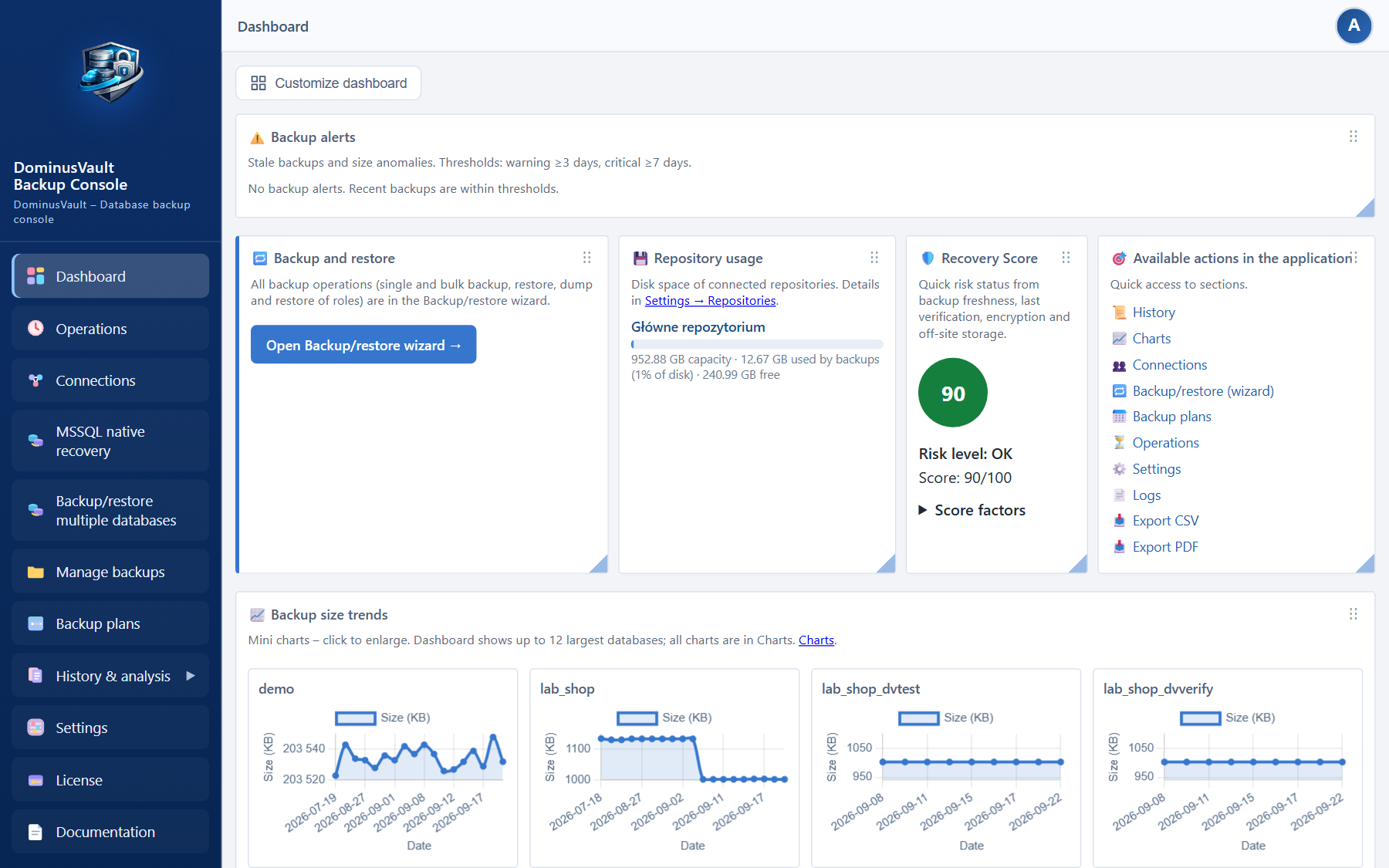
The dashboard is your home page after signing in. You can show or hide individual widgets, drag them into a different order and resize them. The ones you will use most often are:
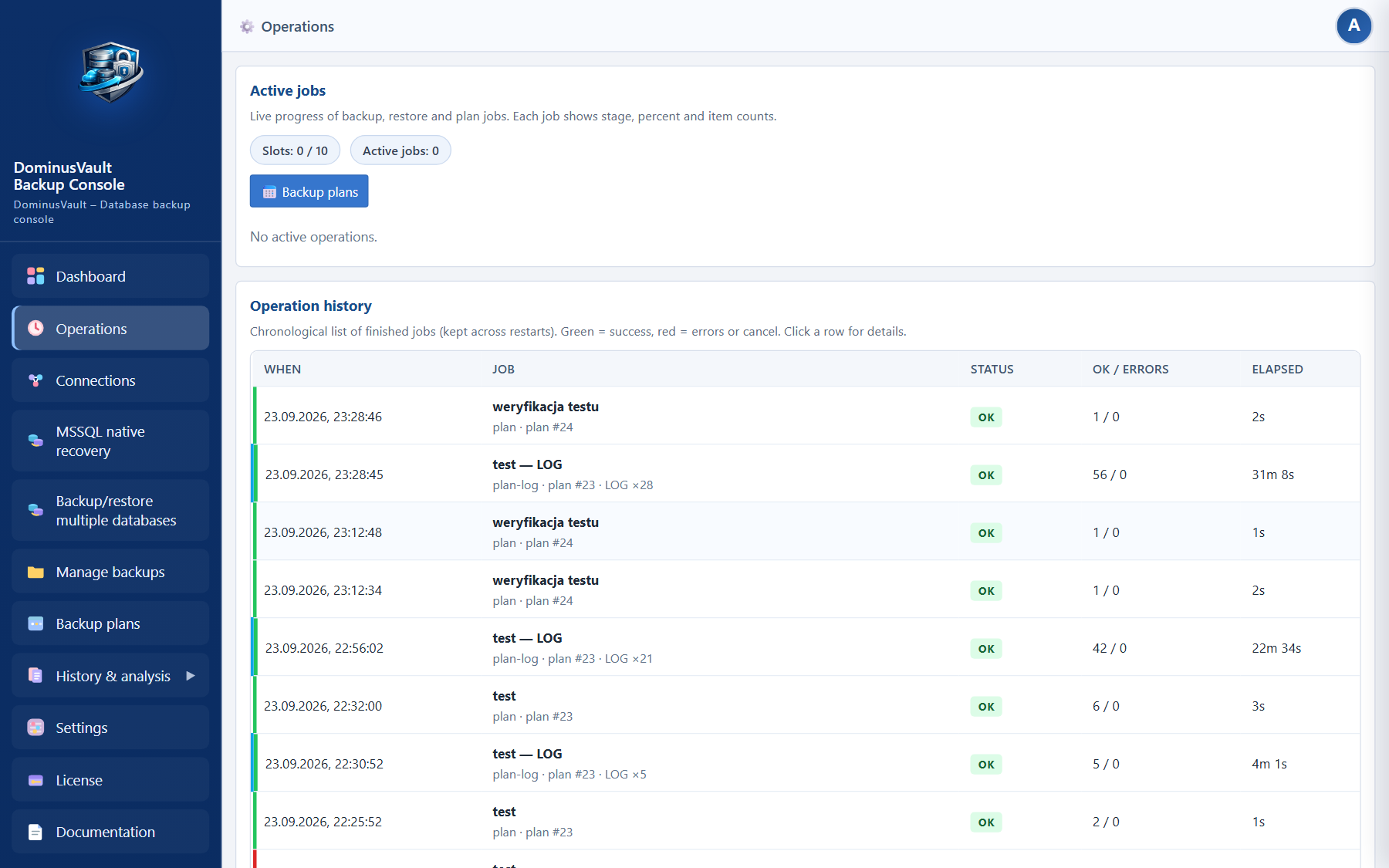
The Operations item sits directly under Dashboard. It shows parallel backup, restore and plan jobs: the stage, the percentage, the number of databases and the log.
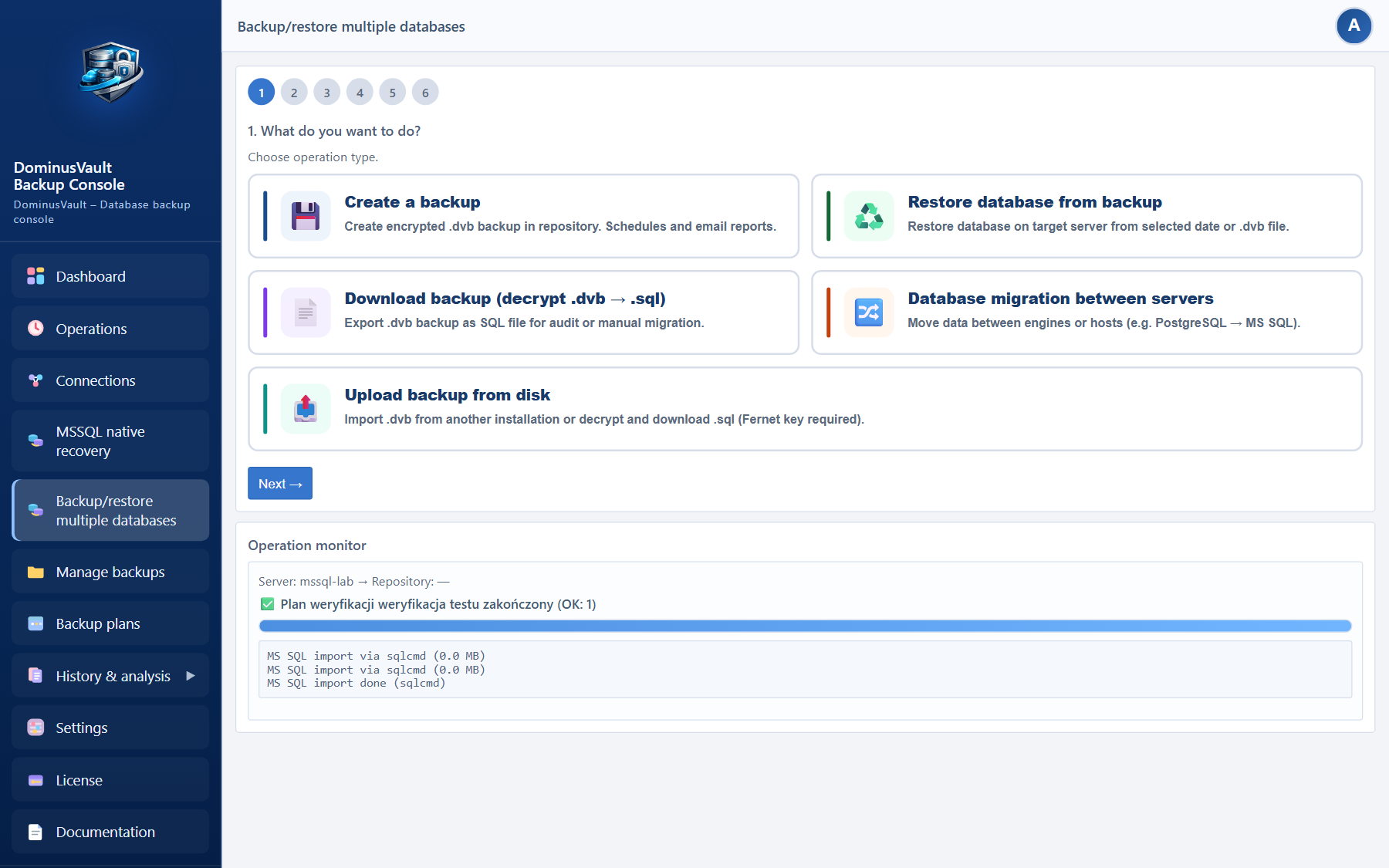
Choose Backup / Restore in the menu. The wizard takes you through it step by step:
Once an operation finishes, its report goes into the Reports registry. On the Execute step, which appears for backups, restores, migrations, uploads and downloads, you tick e-mail report and Gotify notification separately. E-mail needs SMTP configured, Gotify needs the notification server enabled. The CSV and PDF report goes to the registry either way.
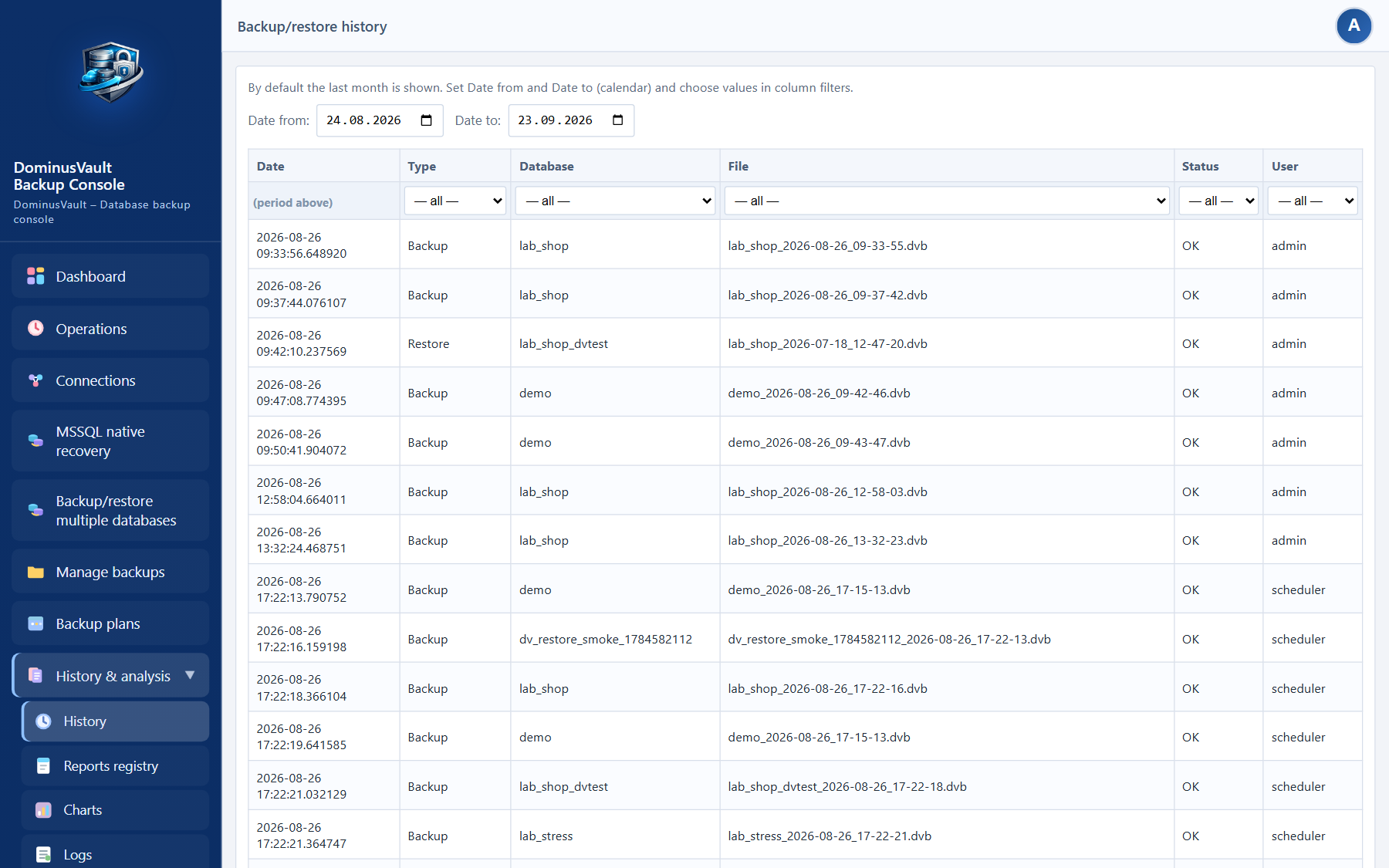
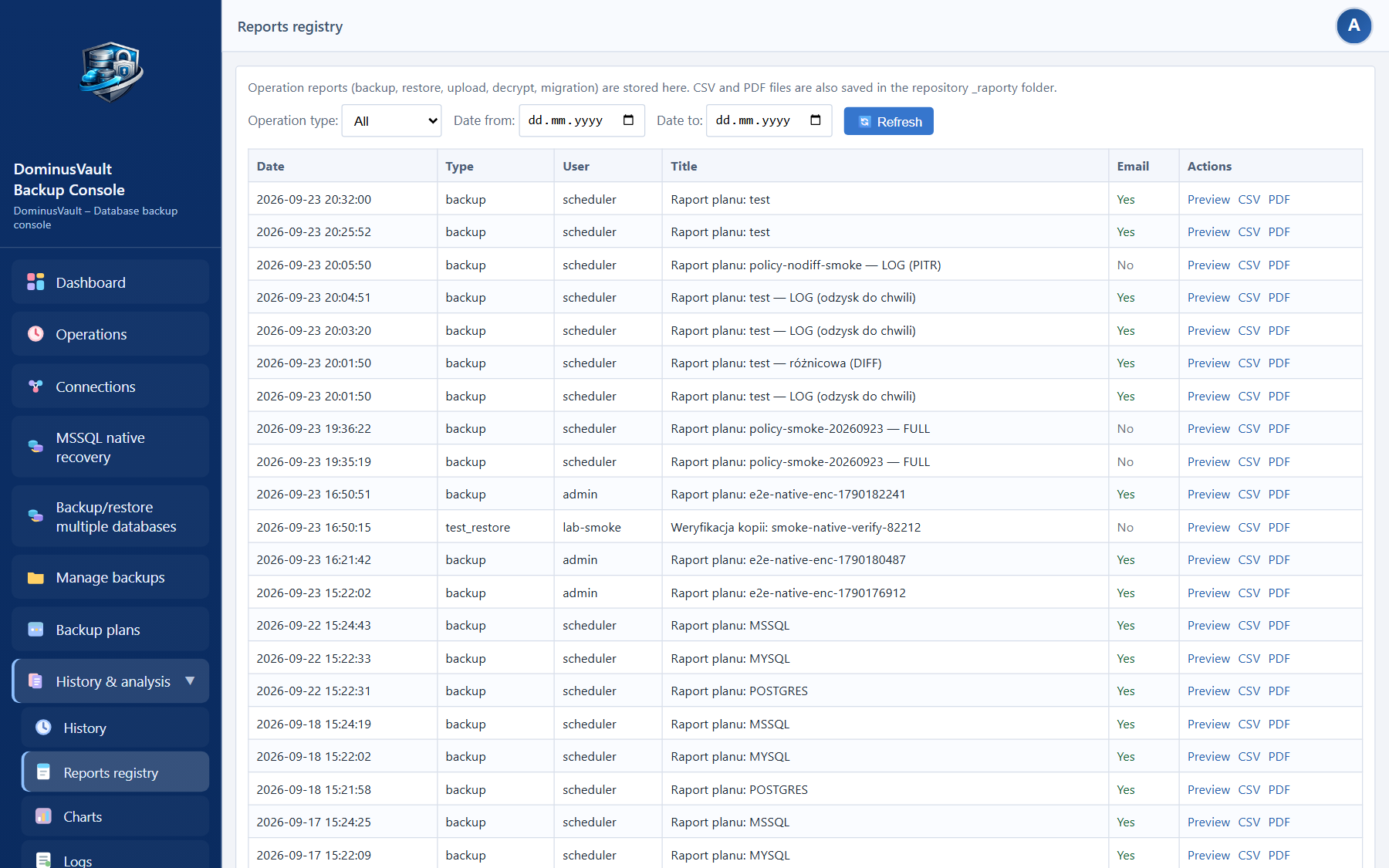
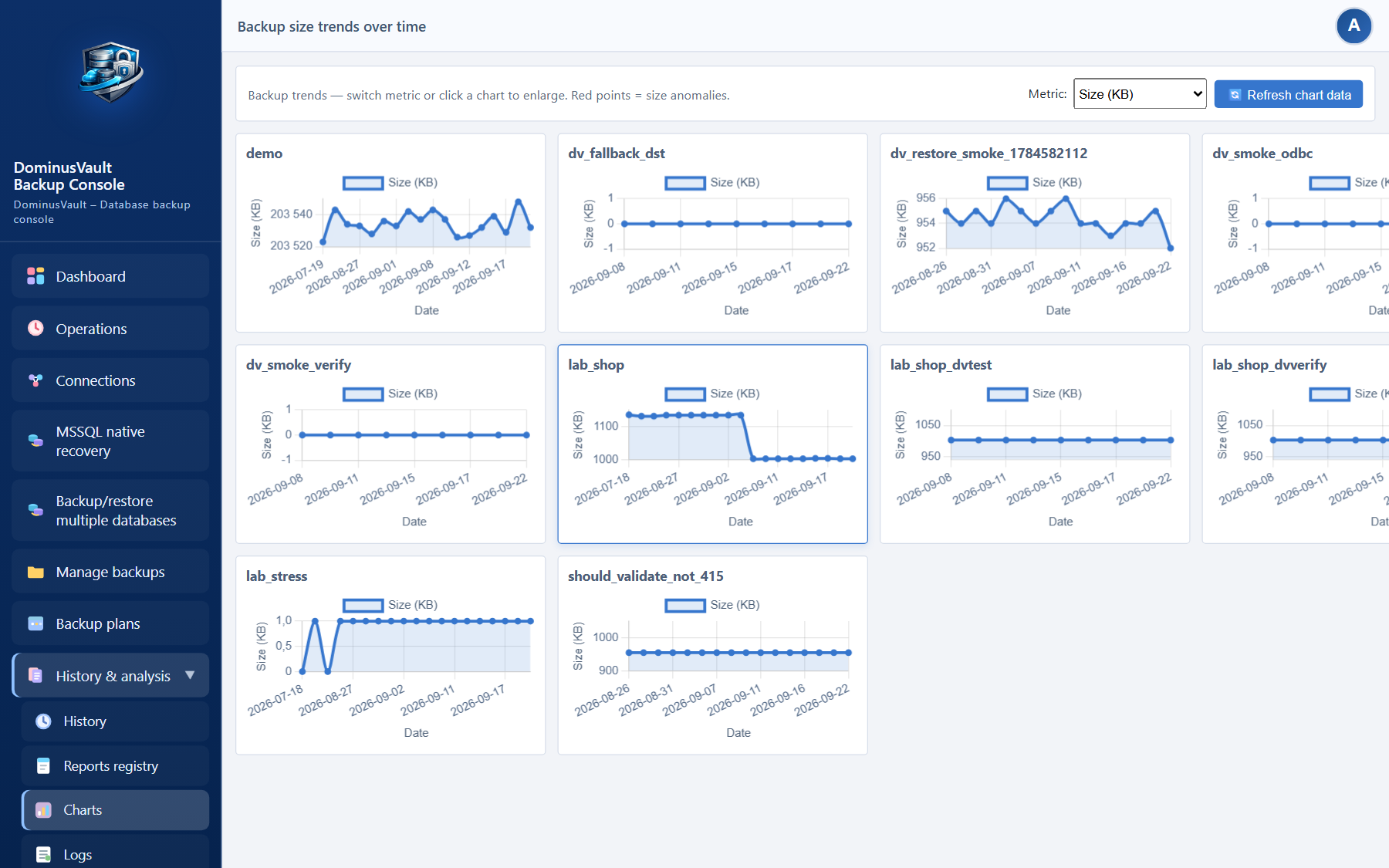
In the sidebar these views are gathered in the expandable History & analysis group. Operations is a separate item under Dashboard and does not belong to that group.
History is the list of earlier backups and restores: which database, which file, what size and how the operation ended.
Reports is the registry of operation reports (backup, restore, upload, decryption, migration) with CSV or PDF download. Access depends on a permission your administrator grants.
Charts show the trend in backup size or duration. Red points mark a suspicious change in size.
Logs cover the application log, restore errors and the audit trail, as long as you have the permission.
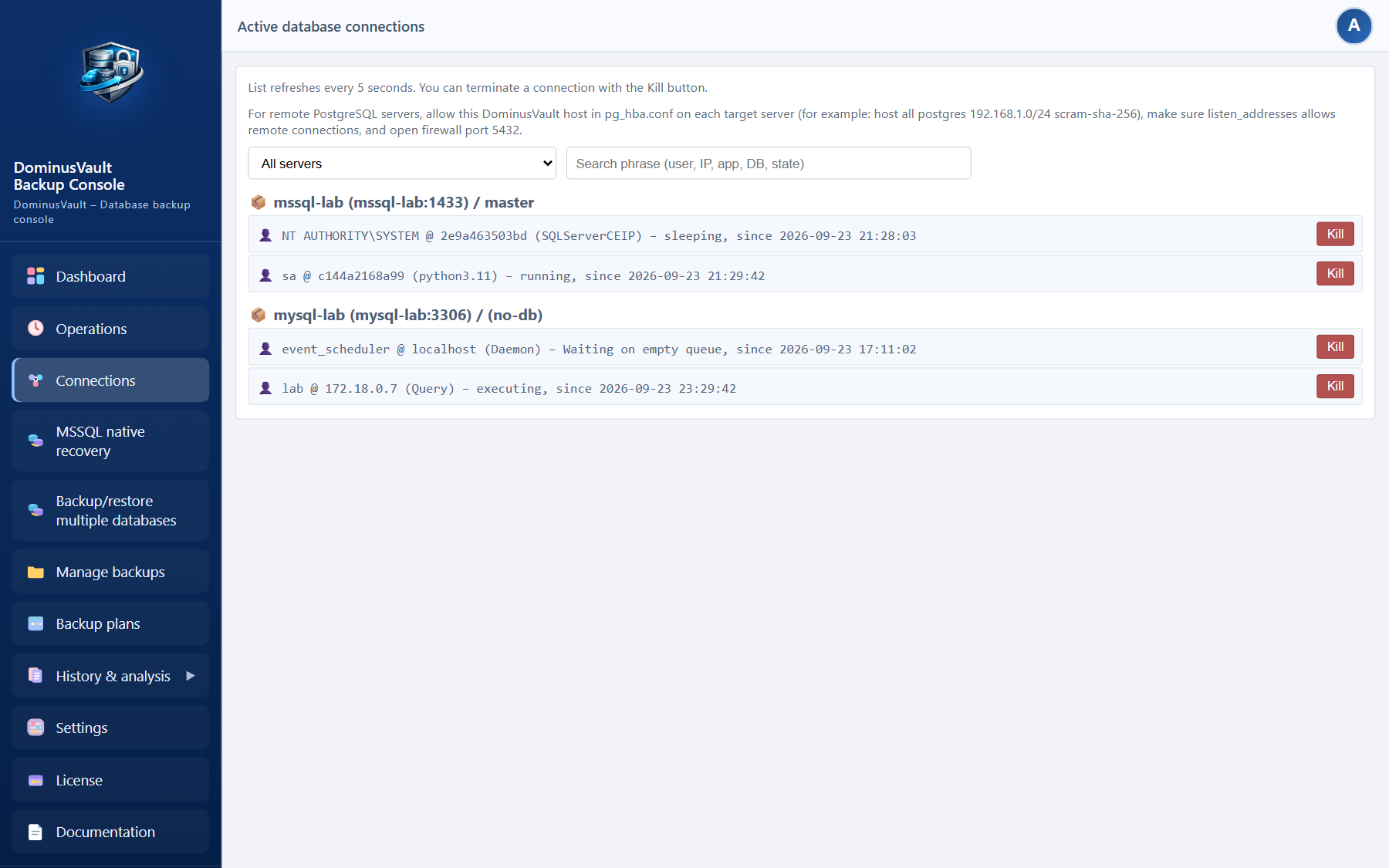
If you have the permission, the Connections section shows who is connected to the databases right now: the user, the application and the IP address. It is useful when you are trying to work out who is blocking a database.
You can filter the list by server and search it by phrase: user, IP address, application name or database.
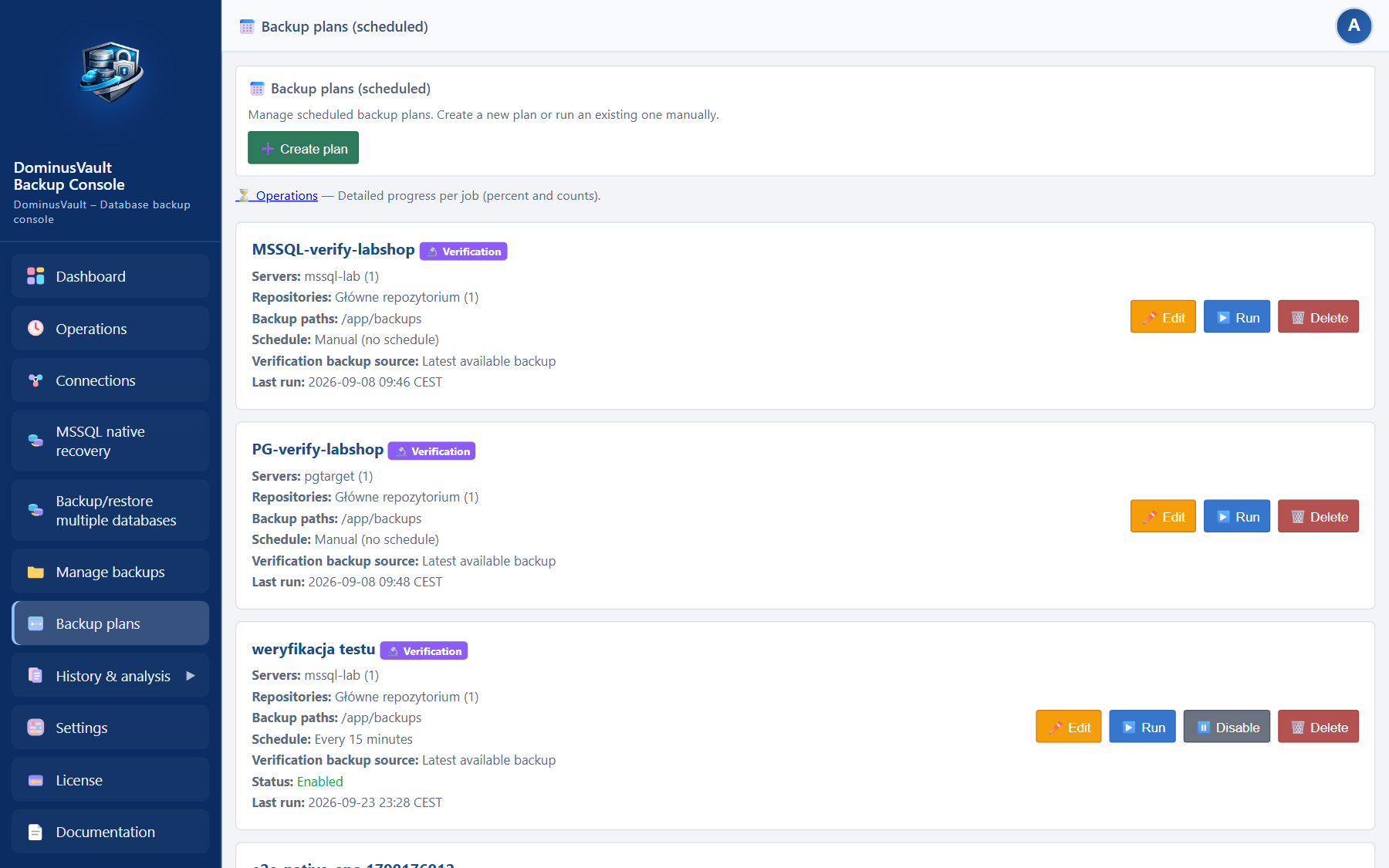
Your administrator can set up backup plans, which are ready-made sets of servers, databases and schedules. If you have the permission, you can review them and run them by hand from the Backup plans menu. Editing opens a panel on the right, split into sections such as schedule and retention. On the server selection step, the name and IP address fit inside the tile. The list shows progress bars for parallel jobs, and how many can run at once depends on the license; you will find the detail on the Operations page. Scheduled automatic runs are set up by the administrator.
If an administrator configured a native MS SQL plan (Professional / Enterprise), open MSSQL native recovery to pick a FULL point (.bak) plus DIFF/LOG (.diff / .trn), optionally set STOPAT (restore to a chosen moment in time), run VERIFYONLY, or restore under a chosen database name. This feature currently works for MS SQL only — PostgreSQL and MySQL still use logical .dvb backups. Details are in the administrator guide.
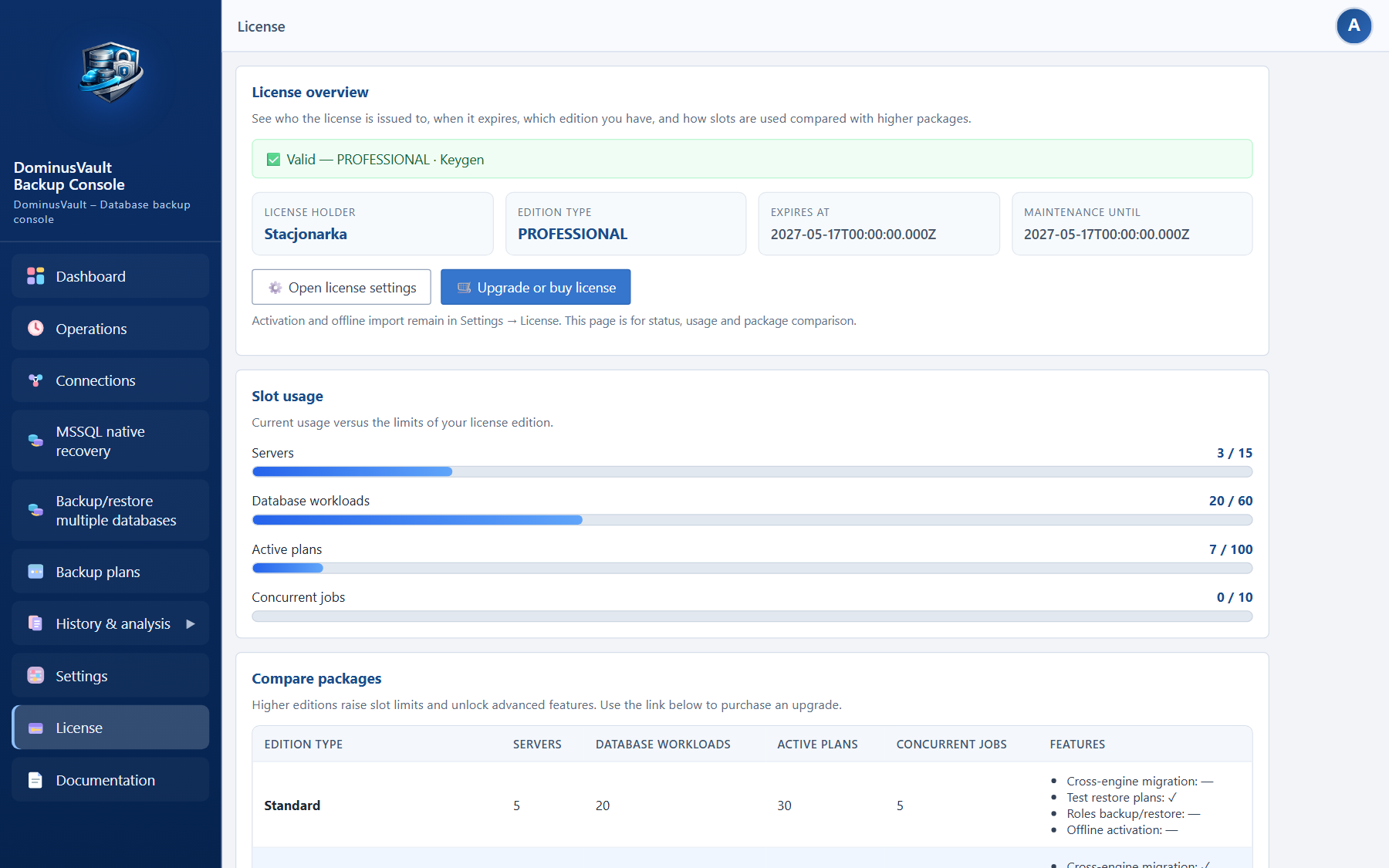
The License menu shows the license holder, the package, the expiry date and slot usage, and compares your package with the higher ones, with a link to buy. Key activation and offline import are done by an administrator under Settings → License.
You open the Reports registry from the Reports registry menu item, assuming your administrator granted you the permission. It holds the full operation history, with filters by type, date and repository, and a CSV or PDF download for each report. This is the main place to review reports from backups, restores, uploads, decryption and migrations.
On the dashboard, the Reports widget gives you a quick export without opening the registry:
When an operation finishes in the wizard you can tick the e-mail report, the Gotify notification or both, provided SMTP and Gotify are configured. The dashboard also links to the registry when you have the Reports permission.
The Documentation menu opens this guide without leaving the panel. The link at the top of the page takes you to the administrator guide, if you have access to it.
Click your user icon in the top-right corner. You will find:
DominusVault – Database backup console. Copyright © DominuNet, Maciej Janas.